Syncer
Keep your PC game saves in sync between your Windows PCs, with a versioned backup in your own Google Drive. Play on the desktop, carry on on the laptop.
Windows 10 and 11, 64-bit. Installs for your account only, updates itself. Free and open source (AGPL-3.0). Release notes · Privacy
Built on two tools that already work well
Syncthing between your PCs
Saves go straight from PC to PC, end-to-end encrypted. No account and no cloud storage in between, and your PCs don't need to be on the same network.
Google Drive as the backup
Syncer copies your saves into My Drive\GameSaveBackup with history, through Google Drive for desktop or its own sign-in that can only see the files it creates.
Why Syncer uses Google Drive
Syncthing copies saves between PCs that are on at the same time. Syncer adds a backup of your saves, with restore points, in your own Google Drive. That backup lets you roll a save back to an earlier point, and lets a PC pick up saves you made on another PC that is now switched off.
- Optional. Signing in with Google is one of two ways to back up; Google Drive for desktop works too, and Syncer also runs without any backup.
- One narrow permission. Syncer asks only for
drive.file: access to the files and folders it creates itself (GameSaveBackup). It can't see or change anything else in your Drive. - Your Drive, your PC. Backups go straight from your PC to your Drive. Syncer has no server, and the sign-in token stays encrypted on your PC.
- Revocable. Sign out revokes access at Google; you can also remove it at myaccount.google.com/permissions.
Syncer's use of information received from Google APIs adheres to the Google API Services User Data Policy, including the Limited Use requirements. Details: Syncer privacy policy.
What it does
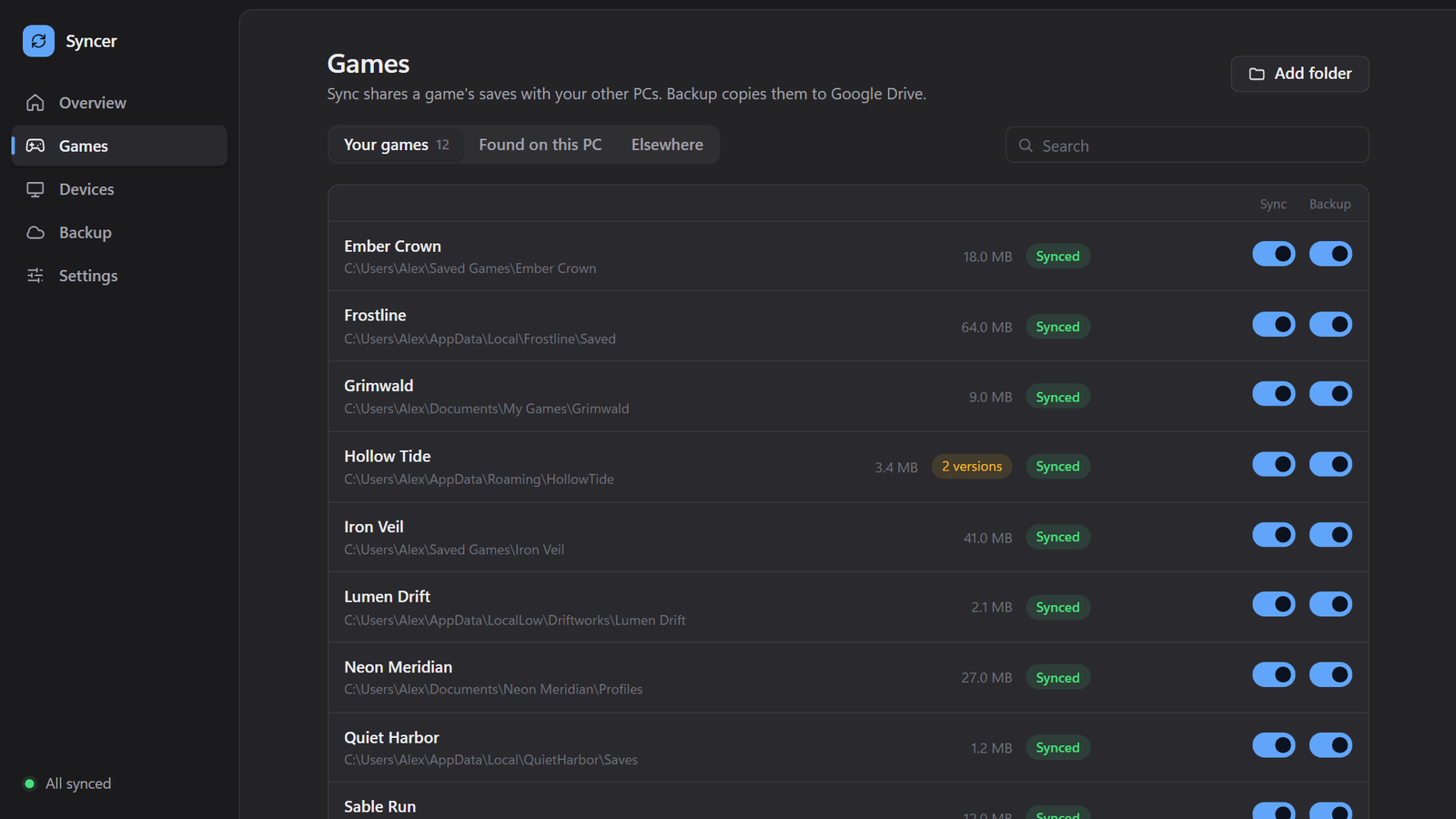
- Finds your games, and keeps finding themChecks about 14,000 games from the Ludusavi manifest (save locations from PCGamingWiki) in under a second. New games start syncing on their own.
- Knows what Steam Cloud already coversFolders Steam Cloud really keeps are left to Steam. Saves in OneDrive and Ubisoft Connect are handled too, so two sync tools never fight over one file.
- Never picks a save behind your backWhen two PCs changed the same save you choose which to keep. The other version goes into the backup history instead of being deleted.
- Restore pointsChanged and deleted files are kept for 30 days by default, thinned to daily and weekly points. Restore any game to any point, and undo the restore.
- Newer saves even when the other PC is offPlayed on the laptop last night and the laptop is off? Syncer takes those saves from its backup, but only when nothing can get lost.
- Stays out of your wayHolds syncing while a game runs, backs up at background priority, lives in the tray and tells you only when something needs you.
- Separate saves per personOptional accounts give each person in the house their own saves for a game, on every PC.
- Works with launchersA local API lets Seaglass sync a game's saves before it starts and back them up after it exits.
Screenshots
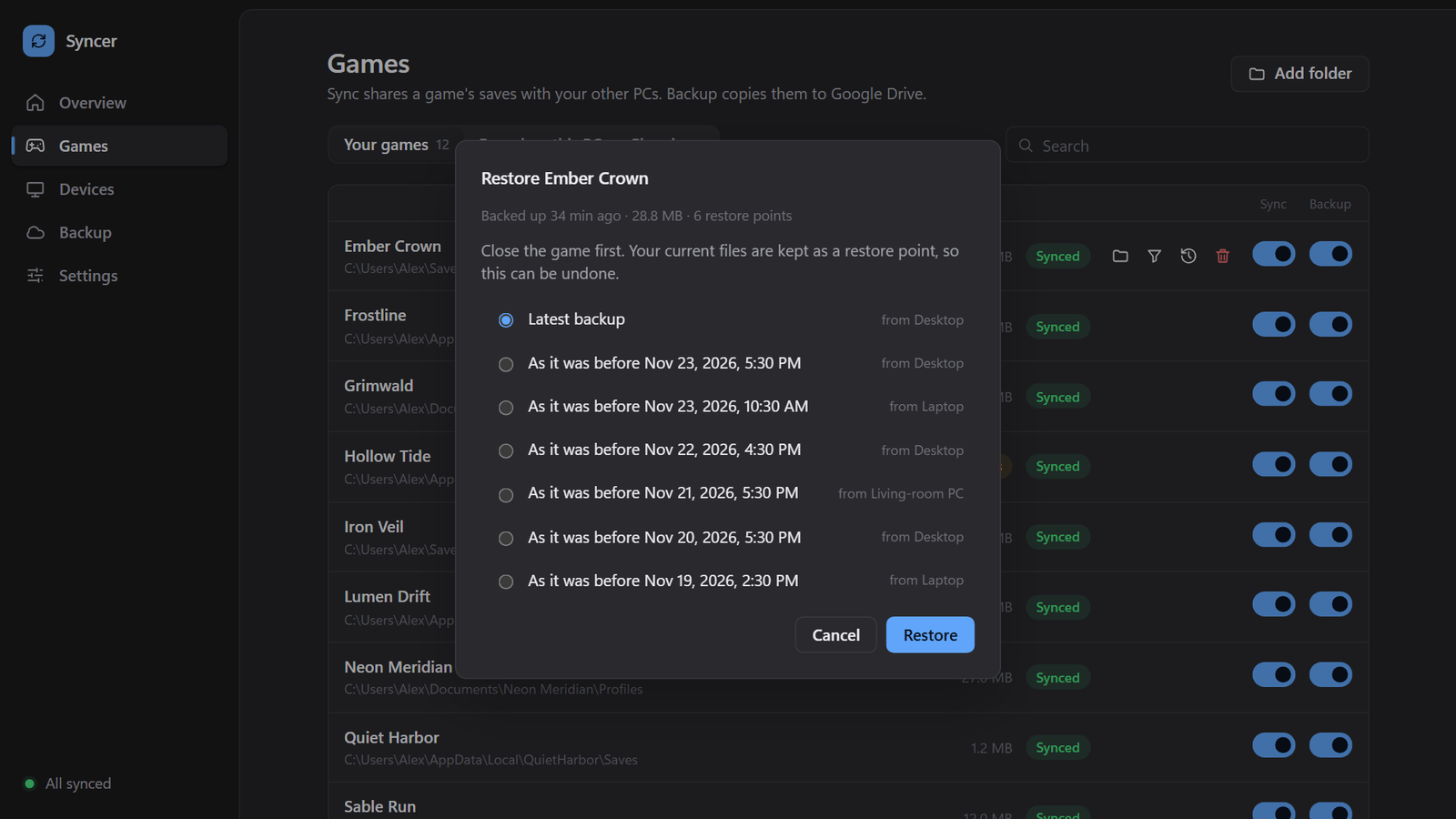
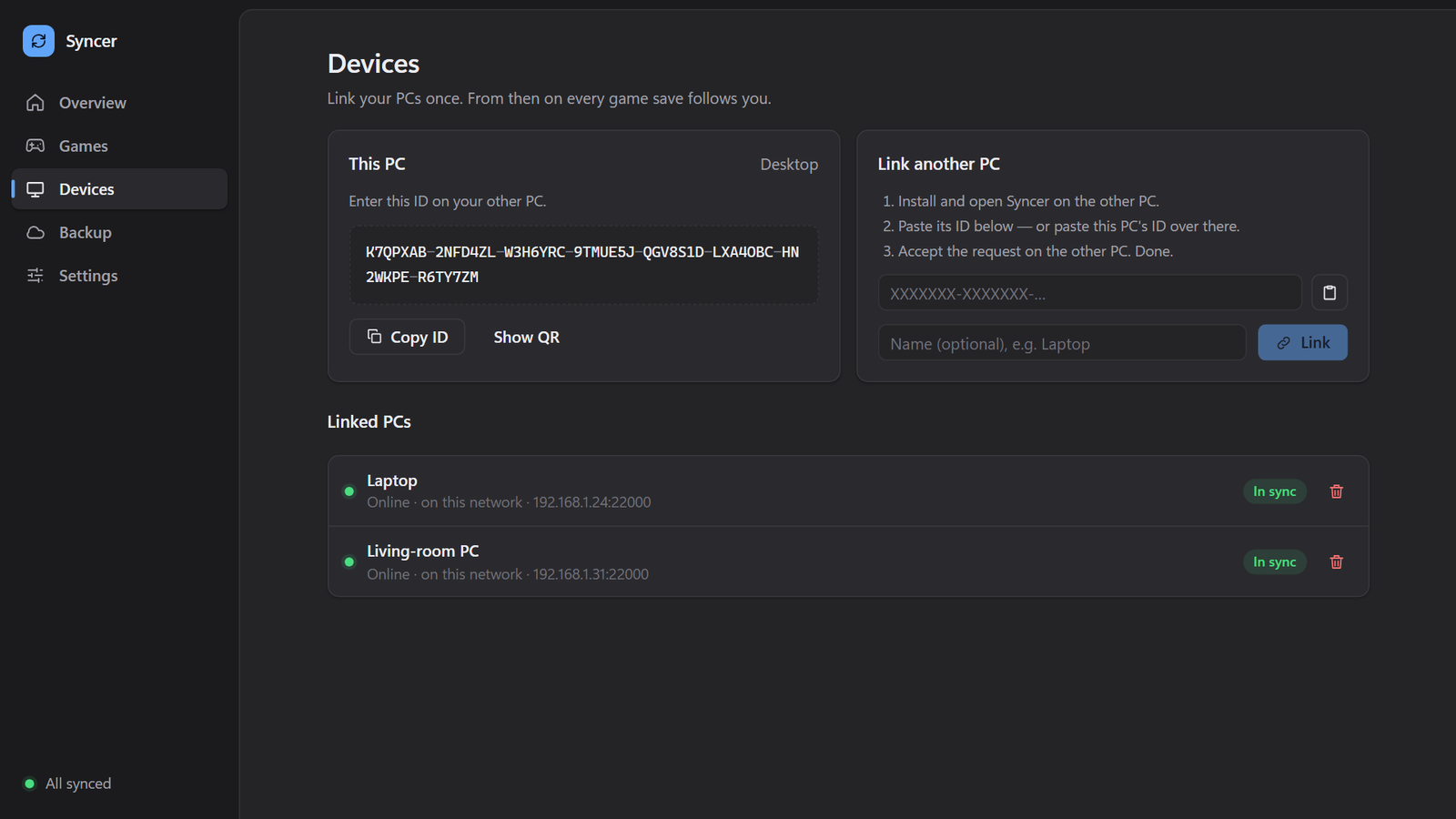
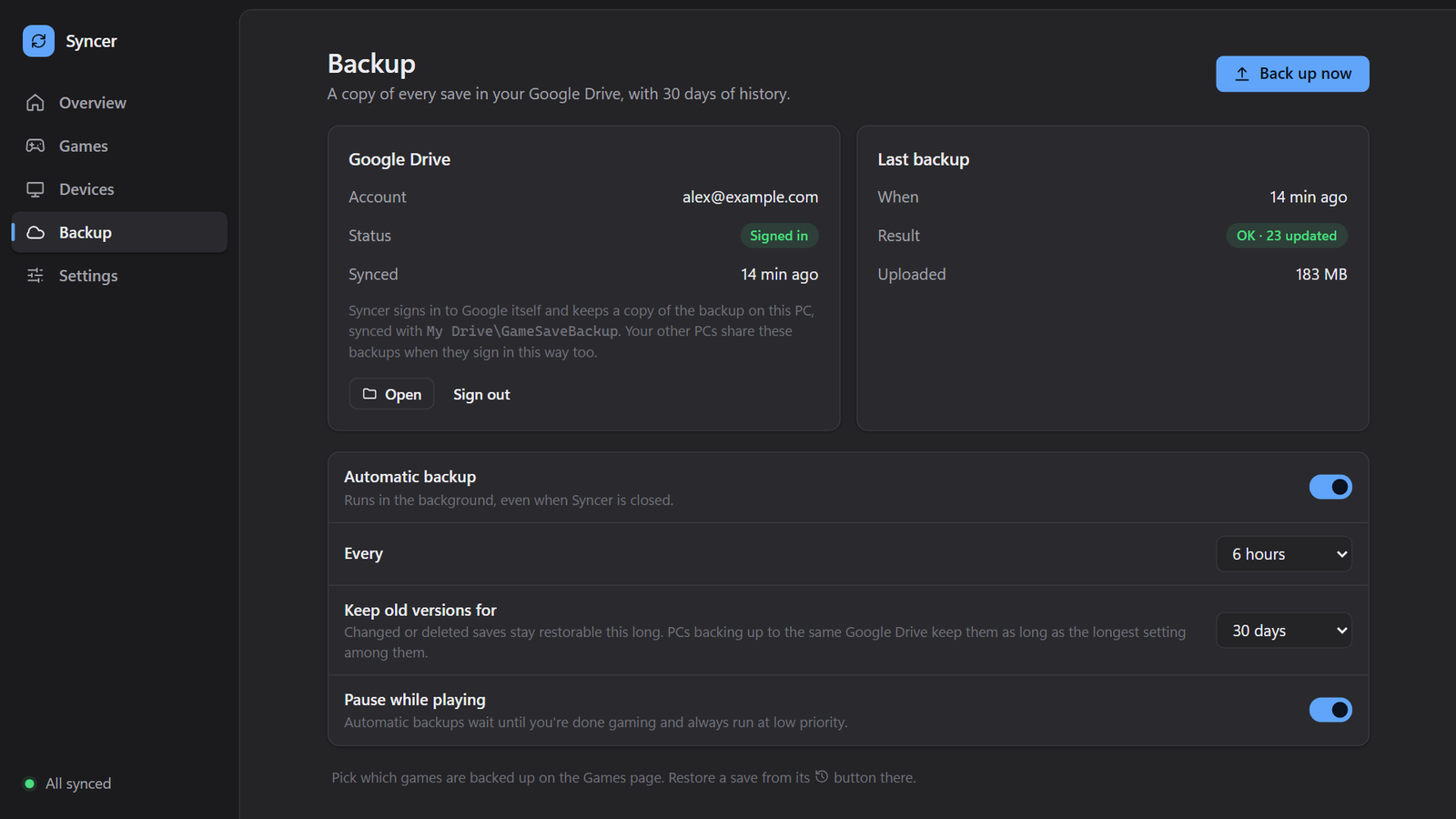
Screenshots use made-up games and PCs.
Install
- Download
Syncer-amd64-installer.exeand run it. It installs for your user only, no admin prompt. Using Seaglass? Settings → Saves → Install Syncer does this for you. - Open Syncer. If Syncthing isn't installed yet, the Overview installs it with one click.
- Install Google Drive for desktop and sign in, or use Backup → Sign in with Google instead.
- On your second PC, install Syncer, then paste one PC's ID under Devices on the other and accept the request.
Builds aren't code-signed yet, so Windows SmartScreen may warn the first time: More info → Run anyway. Updates are checked against the SHA-256 checksum published with each release. Syncer never deletes save files on its own; Settings → Undo everything stops all syncing and leaves your saves where they are.
Syncer is free, with no subscription and no server of its own. If it saved a 60-hour save file, consider saying thanks.
Support Syncer